

🌐 Company Site - Here
🤗 Hugging Face - Here
🛟 Help Center - Here
🐳 Docker Hub - Here
Jump: Quick start · Get the runtime · Start the API · SDK License · Try it · 1:N identification · Setup on your own app · About SDK
- Clone FaceRecognition-Windows
- Download the Lite or Plus runtime from Releases into
lib\cpu\— Get the runtime -
pip install -r requirements.txtthenrun.bat— API on 8092 - Copy the machine code from the terminal (or
GET /api/machinecode) - Contact us for a license key → paste it at the prompt, or
POST /api/activate - Enroll your people, then identify any face against all of them — 1:N identification
- Try it with Swagger (
/docs), Postman, curl, or the Gradio demo on 9092 (run_demo.bat)
No Docker on Windows. For Docker, use FaceRecognition-Docker.
FacePlugin Face Recognition for Windows is a fully on-premise biometric engine for KYC, access control, attendance, and identity verification. Its headline capability is 1:N identification: enroll your people once, then ask who is this? of any photo and get a ranked candidate list back — searched against a gallery that lives on your own PC. It also does face detection (bounding box, landmarks, pose, attributes), ICAO-style quality assessment, and 1:1 verification.
This repository is standalone: clone it, drop the runtime into lib\cpu\, and run. No other FacePlugin repository is required.
All processing stays on your machine, the gallery included. No biometric data is sent to FacePlugin — built for banking, eKYC, and on-premise compliance workflows.
Windows product: native x64 runtime, a local HTTP API with interactive Swagger docs, and a Gradio demo covering 1:N Identification, Gallery, Face Detection, Quality Assessment, and 1:1 Verification. CPU-only.
| Feature | API |
|---|---|
| 1:N identification — search the enrollment gallery for every face in a photo | POST /api/v1/identify · how it works |
| Gallery — enroll, list, search, rename, delete, import a folder | /api/v1/persons · /api/v1/faces · /api/v1/persons/import |
| Find people who look like a given face | POST /api/v1/similar |
| 1:1 verification (two images) | POST /api/v1/match · sdk.match |
| Face detection (bounding box, landmarks, pose, attributes) | POST /api/v1/detect · sdk.detect |
| Face quality analysis (ICAO-style checks) | POST /api/v1/quality · sdk.quality |
| Face template extraction and similarity | POST /api/v1/feature · POST /api/v1/similarity |
| Health / machine code / activate / license | GET /api/v1/health · GET /api/v1/machinecode · POST /api/v1/activate · GET /api/v1/licenseStatus |
Every route also answers at the older path without /v1 (for example /api/match), so existing integrations keep working.
| Product | Repository |
|---|---|
| Face Recognition — Windows | FaceRecognition-Windows (this repo) |
| Face Recognition — Docker | Docker Hub · FaceRecognition-Docker |
| Face Liveness Detection — Windows | FaceLivenessDetection-Windows |
| Face Liveness Detection — Docker | Docker Hub · FaceLivenessDetection-Docker |
On-device face recognition + liveness apps for mobile:
| Step | What you need |
|---|---|
| 1 | Windows 10/11 x64, Python 3.10+ |
| 2 | The runtime in .\lib\cpu\ — see Get the runtime |
| 3 | Start without a license, copy the machine code, send it to FacePlugin (contact), then activate with your license key |
You do not need a license to start the API. Product endpoints unlock after you activate.
| Item | Minimum | Recommended |
|---|---|---|
| CPU | 2 cores | 4 cores |
| RAM | 4 GB | 8 GB |
| Disk | 4 GB | 8 GB |
| OS | Windows 10 x64 | Windows 11 |
| Python | 3.10+ | 3.12 |
.\lib\cpu\ is empty on GitHub because the native binaries and model files are too large. This product is CPU-only — there is no gpu\ package.
Download the runtime from Releases
The release holds two editions. Pick one — both expose the same API and the same file layout.
| Edition | Use it for |
|---|---|
| Lite | The standard recognition engine |
| Plus | The premium engine, for higher-accuracy deployments |
- Clone the repo (if you have not already):
git clone https://github.com/Faceplugin-ltd/FaceRecognition-Windows.git
cd FaceRecognition-Windows- Open the release page above and download the Lite or Plus Windows archive.
- Extract it and put every file directly into
.\lib\cpu\— not inside a nested subfolder.
FaceRecognition-Windows/
└── lib/
    └── cpu/
        ├── FaceRecognitionSDK.dll
        ├── facerec.dll
        ├── onnxruntime.dll
        ├── far.fpk
        └── ... (OpenCV, OpenSSL, and VC++ runtime DLLs from the archive)
Wrong layout: lib\cpu\SomeFolder\FaceRecognitionSDK.dll (a nested folder breaks local runs).
dir lib\cpu\FaceRecognitionSDK.dll
dir lib\cpu\facerec.dll
dir lib\cpu\far.fpk
The VC++ runtime DLLs ship inside lib\cpu\, so you do not need to install vcredist. run.bat puts lib\cpu on PATH.
You can start without a license — the server prints your machine code on startup.
pip install -r requirements.txt
run.batThe API starts even if activation fails. Copy the machine code from the log and send it to FacePlugin.
Licenses are offline and bound to your machine. Offline cryptography is pre-packaged within the SDK — no third-party licensing libraries or external OpenSSL installations are required.
- Start the server (above). A license is not required for the first start.
- Copy the machine code from the terminal, or fetch it with
GET /api/machinecode. - Send that machine code to FacePlugin (contact). We will issue a license key for that code.
- Activate with the license key:
:: After run.bat, paste the license key at the terminal prompt. You can try 3 times.

:: Or paste the license key into .\license.txt (overwrite the file), then:

curl -s -X POST http://127.0.0.1:8092/api/activate -H "Content-Type: text/plain" --data-binary @license.txt
Use the machine code from the PC where you will deploy. Windows machine codes are unique to each PC.
This product exposes recognition APIs only.
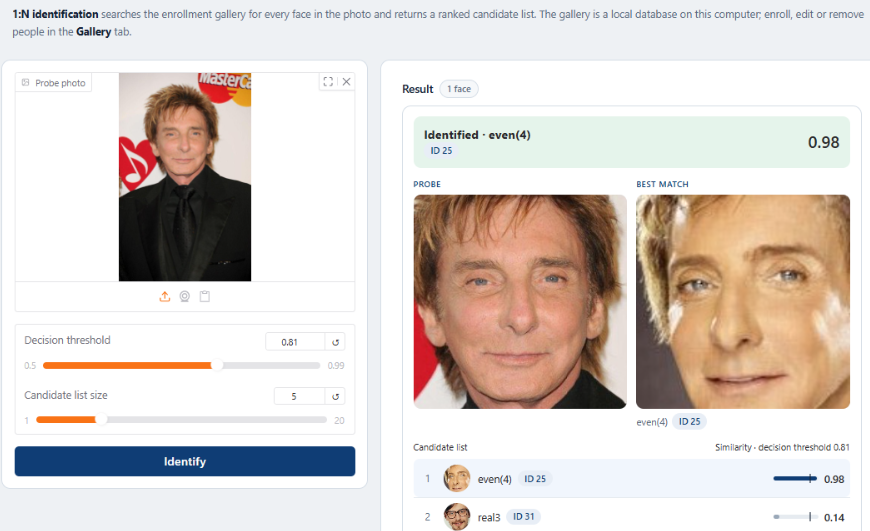
curl -s http://127.0.0.1:8092/api/licenseStatusThis is what the product is for. 1:1 verification answers are these two photos the same person?; 1:N identification answers who is this? — it takes one photo, finds every face in it, and searches your whole enrollment gallery for each one, returning a ranked candidate list with similarity scores.
The gallery is a local database on this machine (data\: SQLite plus face crops). It holds persons, and each person can have several photos — more photos per person make identification more reliable. Nothing leaves the machine.
:: One person per photo. Photos with the same name can be merged into one person.
curl -s -X POST http://127.0.0.1:8092/api/v1/persons -F "image=@anna.jpg" -F "name=Anna Lee"
curl -s -X POST http://127.0.0.1:8092/api/v1/persons -F "image=@anna2.jpg" -F "name=Anna Lee" -F "merge_by_name=true"

:: A whole folder at once, subfolders included (set FACESDK_IMPORT_ROOT first — see Security).
:: name_from=file takes each person's name from the file name, name_from=folder from its folder.
curl -s -X POST http://127.0.0.1:8092/api/v1/persons/import -F "directory=staff" -F "name_from=file"
Enrollment checks:
| Check | What happens |
|---|---|
| Duplicate | On by default (duplicate_check in PATCH /api/v1/settings). Rejects a face that already matches another person (code -7, HTTP 409). Send on_duplicate=add to add the photo to that person, or new to enroll anyway. |
| Quality | Off by default to keep enrollment fast. Send check_quality=true to reject blurry, tiny, strongly turned, or low-quality faces with a reason (code -8, HTTP 422). Lighting and head tilt only warn. |
:: Every face in the photo, top 5 candidates each
curl -s -X POST http://127.0.0.1:8092/api/v1/identify -F "image=@probe.jpg" -F "top_k=5"

:: Override the decision threshold for one request
curl -s -X POST http://127.0.0.1:8092/api/v1/identify -F "image=@probe.jpg" -F "threshold=0.85"
Each face in the answer carries:
| Field | What it tells you |
|---|---|
status |
identified when the best candidate is at or above the decision threshold, otherwise no_match |
| best match | The person id, name, and similarity score |
| candidates | The ranked list, longest first, each with its own similarity |
| timing | How long the template extraction and the gallery search took |
The decision threshold is not hard-coded: send threshold with a request, change the stored default with PATCH /api/v1/settings, or set it in the demo's Settings panel. top_k is per request. POST /api/v1/similar answers the related question — who in the gallery looks like this person?
In Python, gallery.py is the same logic in process:
import gallery

gallery.enroll(base64_image, name="Anna Lee")
result = gallery.identify(base64_probe, top_k=5)   # per-face status and candidates
Error codes: -1 bad input · -2 no face · -4 import not allowed · -5 too large · -6 more than one face · -7 duplicate · -8 low quality · -10 not found.
curl -s http://127.0.0.1:8092/api/healthOpen http://127.0.0.1:8092/docs while the API runs. Every route, parameter, and error code is listed there, and you can send requests from the page. The OpenAPI 3 description is at /api/v1/openapi.json, for generating clients in any language.
More: https://doc.faceplugin.com
By default the API listens on 127.0.0.1 (this machine only) and sends no CORS headers.
| Variable | Purpose |
|---|---|
FACESDK_BIND_HOST |
Listen address. Default 127.0.0.1 (this machine only). |
FACESDK_CORS_ORIGINS |
Comma-separated browser origins allowed to call the API. |
FACESDK_IMPORT_ROOT |
Folder that POST /api/v1/persons/import may read. Import is off when unset. |
FACESDK_MAX_UPLOAD_MB |
Largest request (default 20). |
Import postman/FaceRecognition-API.postman_collection.json.
Default base URL: http://127.0.0.1:8092. Routes are /api/v1/*; the older /api/* paths still work.
A local FacePlugin Face Recognition demo in the browser. The API must already be running on port 8092.
pip install -r requirements-demo.txt
run_demo.bat
Open http://127.0.0.1:9092. Sample images, when present, are in assets/examples/samples/.
| Tab | What it shows |
|---|---|
| Face Detection | Faces, pose, and attributes (age, emotion, glasses, mask, …), with a Result table and Raw JSON |
| Quality Assessment | ICAO-style face image quality checks |
| 1:1 Verification | Compares two photos: Match or No match against the decision threshold, plus the similarity of every face pair |
| 1:N Identification | Searches the local gallery for every face in a photo, with a ranked candidate list and timing — see 1:N identification |
| Gallery | Enroll from files or a whole directory, search, rename, add or remove photos, find possible duplicates |
| API | Endpoint list, curl examples, and links to the Swagger docs |
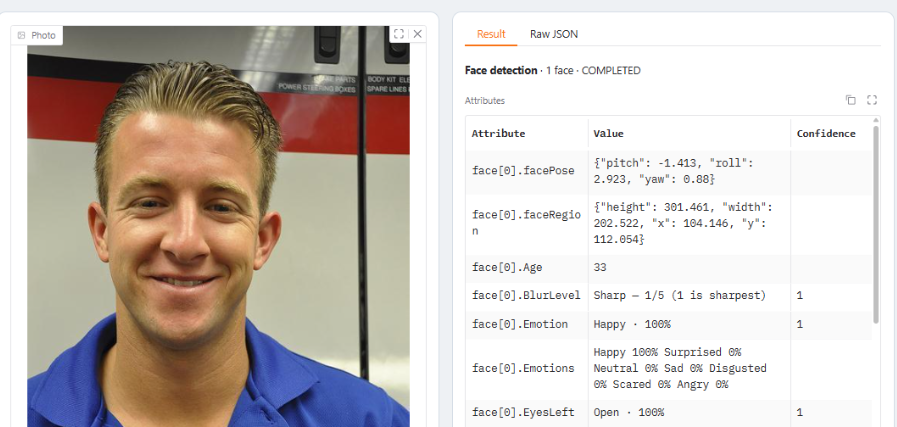
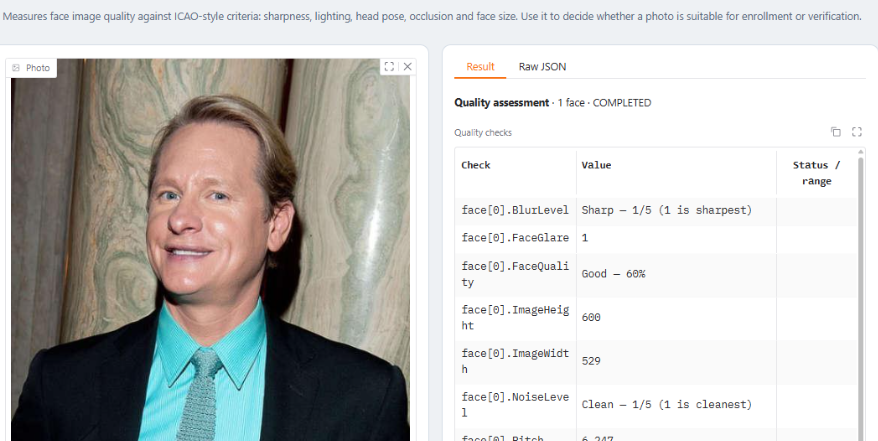
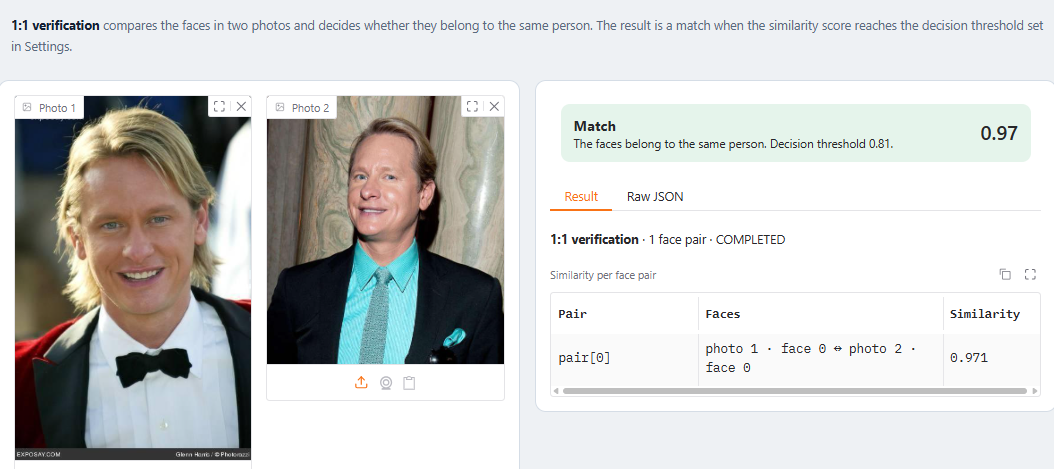
Two ways to call the same engine. Full protocol: https://doc.faceplugin.com.
| Path | When to use |
|---|---|
HTTP API (run.bat) |
Any language. Keep the API running and send images to it. |
sdk.py |
Python on the same Windows machine as lib\cpu\. No HTTP hop. |
HTTP (any language)
- Start the API with
run.batand activate it once. - Call
/api/v1/detect,/api/v1/quality,/api/v1/match,/api/v1/identify,/api/v1/persons, … Images go as base64 JSON or as form-data files. - Check every response for the error codes listed under Try it.
Python in-process
- Copy
sdk.pyandlib\cpu\into your project. - Put
lib\cpuonPATH(that is allrun.batdoes). - Call
get_machine_code→activate→init_sdk, then the recognition calls.
The Gradio demo (demo.py / run_demo.bat) is a local test UI. You do not need it in production.
sdk.py is the Python binding. Every call returns 0 on success, or an error code.
1. Get the machine code and request a license
import sdk

print(sdk.get_machine_code())
2. Activate, then initialize
ret = sdk.activate("license.txt")   # 0 on success
if ret == 0:
    ret = sdk.init_sdk()            # 0 on success

status = sdk.get_license_status()   # what the key unlocks
3. Call the engine
sdk.detect(base64_image)                      # faces, pose, attributes
sdk.quality(base64_image)                     # ICAO-style quality checks
sdk.feature(base64_image)                     # face template
sdk.match(base64_image1, base64_image2)       # 1:1 verification
sdk.similarity(feature1_b64, feature2_b64)    # compare two templates
4. Gallery and 1:N identification
gallery.py keeps the enrolled people in SQLite and searches them with sdk.feature and sdk.similarity:
import gallery

gallery.enroll(base64_image, name="Anna Lee")
result = gallery.identify(base64_probe, top_k=5)   # per-face status and candidates
HTTP endpoints (all under /api/v1, also at /api): health, machinecode, licenseStatus, backend, activate, detect, quality, match, feature, similarity, identify, similar, settings, persons, persons/{id}, persons/import, faces/{id}, faces/{id}/image. Full reference: /docs.


