

🌐 Company Site - Here
🤗 Hugging Face - Here
🛟 Help Center - Here
🐳 Docker Hub - Here
Jump: Quick start · Get the runtime · Start the API · SDK License · Try it · Setup on your own app · About SDK
- Clone FaceLivenessDetection-Windows
- Download
runtime.zipfrom Releases and extract it intolib\cpu\— Get the runtime -
pip install -r requirements.txtthenrun.bat— API on 8093 - Copy the machine code (
FPMC1.…) from the terminal, orGET /api/machinecode - Contact us for a license key → paste it at the prompt, or
POST /api/activate - Try it with Postman, curl, or the Gradio demo on 9093 (
run_demo.bat)
No Docker on Windows. For Docker, use FaceLivenessDetection-Docker.
FacePlugin Face Liveness Detection for Windows is a fully on-premise anti-spoofing engine for KYC and remote identity verification. It answers one question about one photo — is this a real face in front of the camera, or a presentation attack? — and returns Real / Spoof with a score. Passive: nothing is asked of the person, and a single RGB frame is enough. No depth camera, no infrared, no extra hardware.
It detects printed photos, screen replays (photo and video), 3D masks, and deepfakes handled as one more kind of spoof.
This repository is standalone: clone it, drop the runtime into lib\cpu\, and run. No other FacePlugin repository is required.
All processing stays on your machine. No biometric data is sent to FacePlugin — built for banking, eKYC, and on-premise compliance workflows.
Windows product: native x64 runtime, a local HTTP API, and a Gradio demo. CPU-only.
| Feature | API |
|---|---|
| Passive face liveness — score one RGB image for presentation attacks | POST /api/liveness · sdk.liveness |
| Printed photo, screen replay, 3D mask and deepfake detection | same call |
| Score, Real/Spoof verdict, pass flag | data.score · data.result · data.pass |
| Health / machine code / activate / license | GET /api/health · GET /api/machinecode · POST /api/activate · GET /api/licenseStatus |
| Which runtime is loaded | GET /api/backend |
Score ≥ 0.5 → result: "Real", pass: true. Score < 0.5 → result: "Spoof", pass: false.
POST /api/check_liveness is an alias of /api/liveness. Routes are /api/*; there is no version segment, and every /api/* path answers OPTIONS for browser preflight.
The call takes one image and nothing else — there is no model or algorithm to choose. The runtime fuses every RGB estimator it holds into the single score you get back, and pass is score >= 0.5, fixed in native code and not settable over HTTP.
Liveness here is passive only. There is no active (challenge–response) liveness over HTTP; for that, use the mobile SDKs in Product List.
Passive mode, at the default threshold of 0.5:
| Metric | This product (server) |
|---|---|
| BPCER — real faces wrongly rejected | 0% (none observed) |
| APCER — attacks wrongly accepted | 0.5 – 1.5% |
Measured by FacePlugin QA following the ISO/IEC 30107-3 methodology, against four presentation attack instrument species: printed photo, screen replay (photo), screen replay (video), and a painted 3D resin mask.
This is an internal evaluation, not an independent laboratory result, and no iBeta certification is claimed. A 0% BPCER means no rejection was observed — for 600 presentations the one-sided 95% upper bound is about 0.5%. Ask us for the full PAD evaluation report.
Figures: doc.faceplugin.com.
The same Face Liveness product ships on nine platforms. The mobile SDKs run on-device and offer passive and active liveness; the two server products are passive only.
| Platform | Repository |
|---|---|
| Android | FaceLivenessDetection-Android |
| iOS | FaceLivenessDetection-iOS |
| Flutter | FaceLivenessDetection-Flutter |
| React Native | FaceLivenessDetection-ReactNative |
| Ionic Capacitor | FaceLivenessDetection-Ionic-Capacitor |
| Ionic Cordova | FaceLivenessDetection-Ionic-Cordova |
| .NET MAUI | FaceLivenessDetection-DotNet-MAUI |
| Windows (server) | FaceLivenessDetection-Windows (this repo) |
| Linux / Docker (server) | Docker Hub · FaceLivenessDetection-Docker |
Need active liveness — blink, smile, turn your head? That is an on-device feature; start with the mobile SDKs above, for example FaceLivenessDetection-Android or FaceLivenessDetection-iOS.
Face recognition, on-premise servers:
- Windows — FaceRecognition-Windows
- Docker — Docker Hub · FaceRecognition-Docker
On-device face recognition + liveness apps for mobile:
| Step | What you need |
|---|---|
| 1 | Windows 10/11 x64, Python 3.10+ |
| 2 | The runtime in .\lib\cpu\ — see Get the runtime |
| 3 | Start without a license, copy the machine code, send it to FacePlugin (contact), then activate with your license key |
You do not need a license to start the API. Product endpoints unlock after you activate.
| Item | Minimum | Recommended |
|---|---|---|
| CPU | 4 cores | 4 cores |
| RAM | 4 GB | 8 GB |
| Disk | 4 GB | 8 GB |
| OS | Windows 10 x64 | Windows 11 x64 |
| Python | 3.10+ | 3.12 |
.\lib\cpu\ is empty on GitHub because the native binaries and model files are too large. This product is CPU-only — there is no gpu\ package.
Download the runtime from Releases
The release holds one archive, runtime.zip — there is a single runtime for this product.
- Clone the repo (if you have not already):
git clone https://github.com/Faceplugin-ltd/FaceLivenessDetection-Windows.git
cd FaceLivenessDetection-Windows- Open the release page above and download
runtime.zip. - Extract it and put every file directly into
.\lib\cpu\— not inside a nested subfolder.
FaceLivenessDetection-Windows/
└── lib/
    └── cpu/
        ├── FaceLivenessSDK.dll
        ├── facerec.dll
        ├── fal.fpk
        ├── onnxruntime.dll
        └── ... (OpenCV and VC++ runtime DLLs from the archive)
Wrong layout: lib\cpu\SomeFolder\FaceLivenessSDK.dll (a nested folder breaks local runs).
dir lib\cpu\FaceLivenessSDK.dll
dir lib\cpu\facerec.dll
dir lib\cpu\fal.fpk
The VC++ runtime DLLs ship inside lib\cpu\, so you do not need to install vcredist. run.bat puts lib\cpu on PATH.
You can start without a license — the server prints your machine code on startup.
pip install -r requirements.txt
run.batThe API starts even if activation fails. Copy the machine code (FPMC1.…) from the log and send it to FacePlugin. When prompted, paste your license key, or skip and activate later.
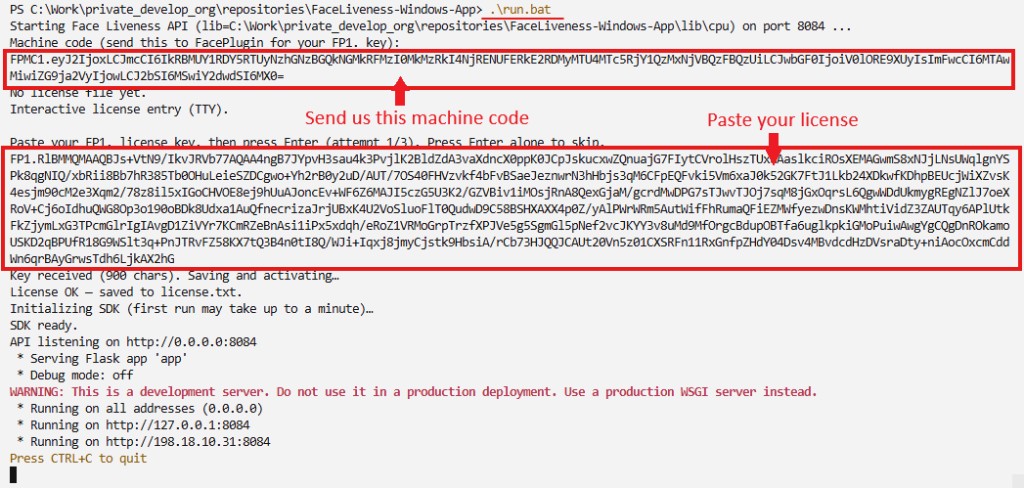
Licenses are offline and bound to your machine. Offline cryptography is pre-packaged within the SDK — no third-party licensing libraries or external OpenSSL installations are required.
The repository already contains a license.txt — you do not create it. Unless the key in it was issued for your machine code, activation fails on the first start, the server prints your machine code and asks for your key. Overwrite the file with the key we send you.
- Start the server (above). A license is not required for the first start.
- Copy the machine code from the terminal — it looks like
FPMC1.…— or fetch it withGET /api/machinecode. - Send that machine code to FacePlugin (contact). We will issue a license key for that code.
- Activate with the license key:
:: After run.bat, paste the license key at the terminal prompt. You can try 3 times.

:: Or overwrite .\license.txt — the repo already ships one, and your key replaces it — then:

curl -s -X POST http://127.0.0.1:8093/api/activate -H "Content-Type: text/plain" --data-binary @license.txt

:: Or stop the process (Ctrl+C), save license.txt, and run run.bat again
Use the machine code from the PC where you will deploy. Windows machine codes are unique to each PC.
This product exposes liveness APIs only. A key labelled Liveness only or Recognition + Liveness unlocks /api/liveness; a Recognition only key leaves it unavailable here.
curl -s http://127.0.0.1:8093/api/licenseStatusThe Gradio demo shows the same summary as License: at the top of the page.
curl -s http://127.0.0.1:8093/api/healthcurl -s -X POST http://127.0.0.1:8093/api/liveness -H "Content-Type: application/json" -d "{\"image\":\"<base64-jpeg>\"}"
:: or multipart, with the file in the `image` field (`file` is accepted too)
curl -s -X POST http://127.0.0.1:8093/api/liveness -F "image=@face.jpg"The native JSON is passed through verbatim:
{ "success": true, "code": 0, "message": "OK", "data": { "score": 0.72, "result": "Real", "pass": true } }Common failures (success: false, data: null):
message |
Meaning |
|---|---|
NO_FACE |
No usable face in the image |
Image not suitable |
Missing or undecodable image |
Full protocol: https://doc.faceplugin.com.
This API has no authentication. By default it listens on 0.0.0.0 — every interface, reachable from your network — and answers browser requests from any origin.
| Variable | Purpose |
|---|---|
FACESDK_BIND_HOST |
Listen address. Default 0.0.0.0. Set it to 127.0.0.1 for this machine only. |
PORT / FACESDK_PORT |
API port. Default 8093. |
LICENSE |
A license key (FP1.…) or a path to a license file. Default .\license.txt. |
FP_NO_LICENSE_PROMPT |
Set to 1 to skip the interactive paste prompt — for services and CI. |
Put it behind your own gateway, or bind it to localhost, before exposing it anywhere untrusted.
Import postman/FaceLiveness-API.postman_collection.json. See postman/README.md for the flow and failure messages.
Default base URL: http://127.0.0.1:8093. Routes are /api/* (/api/check_liveness aliases /api/liveness).
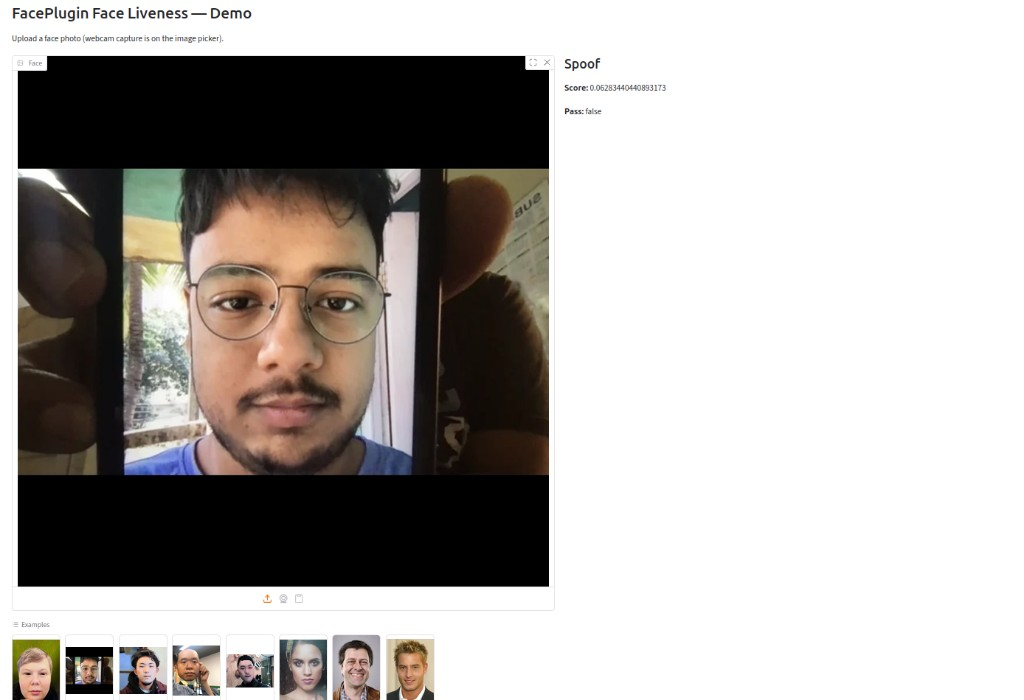
A local FacePlugin Face Liveness demo in the browser. The API must already be running on port 8093.
pip install -r requirements-demo.txt
run_demo.bat
Open http://127.0.0.1:9093. Sample spoof images are in assets/examples/samples/.
To change the ports, set them yourself instead of using run_demo.bat — CMD:
set DEMO_PORT=9093
set API_BASE=http://127.0.0.1:8093
python demo.py
PowerShell:
$env:DEMO_PORT = "9093"
$env:API_BASE = "http://127.0.0.1:8093"
python demo.py
Each run shows Score, Result (Real or Spoof) and Pass, with the raw JSON beside it.
Two ways to call the same engine. Full protocol: https://doc.faceplugin.com.
| Path | When to use |
|---|---|
HTTP API (run.bat) |
Any language. Keep the API running and POST a base64 JPEG to it. |
sdk.py |
Python on the same Windows machine as lib\cpu\. No HTTP hop. |
HTTP (any language)
- Start the API with
run.batand activate it once. POST /api/livenesswith{"image":"<base64-jpeg>"}.- Read
data.passfor the verdict, and checksuccess/codeon every response.
Python in-process
- Copy
sdk.pyandlib\cpu\into your project. - Put
lib\cpuonPATH(that is allrun.batdoes). - Call
get_machine_code→activate→init_sdk, thenliveness.
The Gradio demo (demo.py / run_demo.bat) is a local test UI. You do not need it in production.
sdk.py is the Python binding. Every call returns 0 on success, or an error code.
1. Get the machine code and request a license
import sdk

print(sdk.get_machine_code())   # FPMC1.…
2. Activate, then initialize
ret = sdk.activate("license.txt")   # 0 on success
if ret == 0:
    ret = sdk.init_sdk()            # 0 on success

status = sdk.get_license_status()   # what the key unlocks
3. Score a face
result = sdk.liveness(base64_image) # JSON stringdata is { "score": <float>, "result": "Real" | "Spoof", "pass": <bool> }. Every RGB engine in the runtime is run and the scores are combined into that one verdict. Images arrive as base64 JPEG (a data: prefix is accepted); anything else is converted and re-encoded, and over 8 MB is downscaled.
HTTP endpoints: /api/health, /api/machinecode, /api/licenseStatus, /api/backend, /api/activate, /api/liveness, /api/check_liveness.


